PojavLauncher Guide: How to Play Minecraft Java Edition on Android Devices
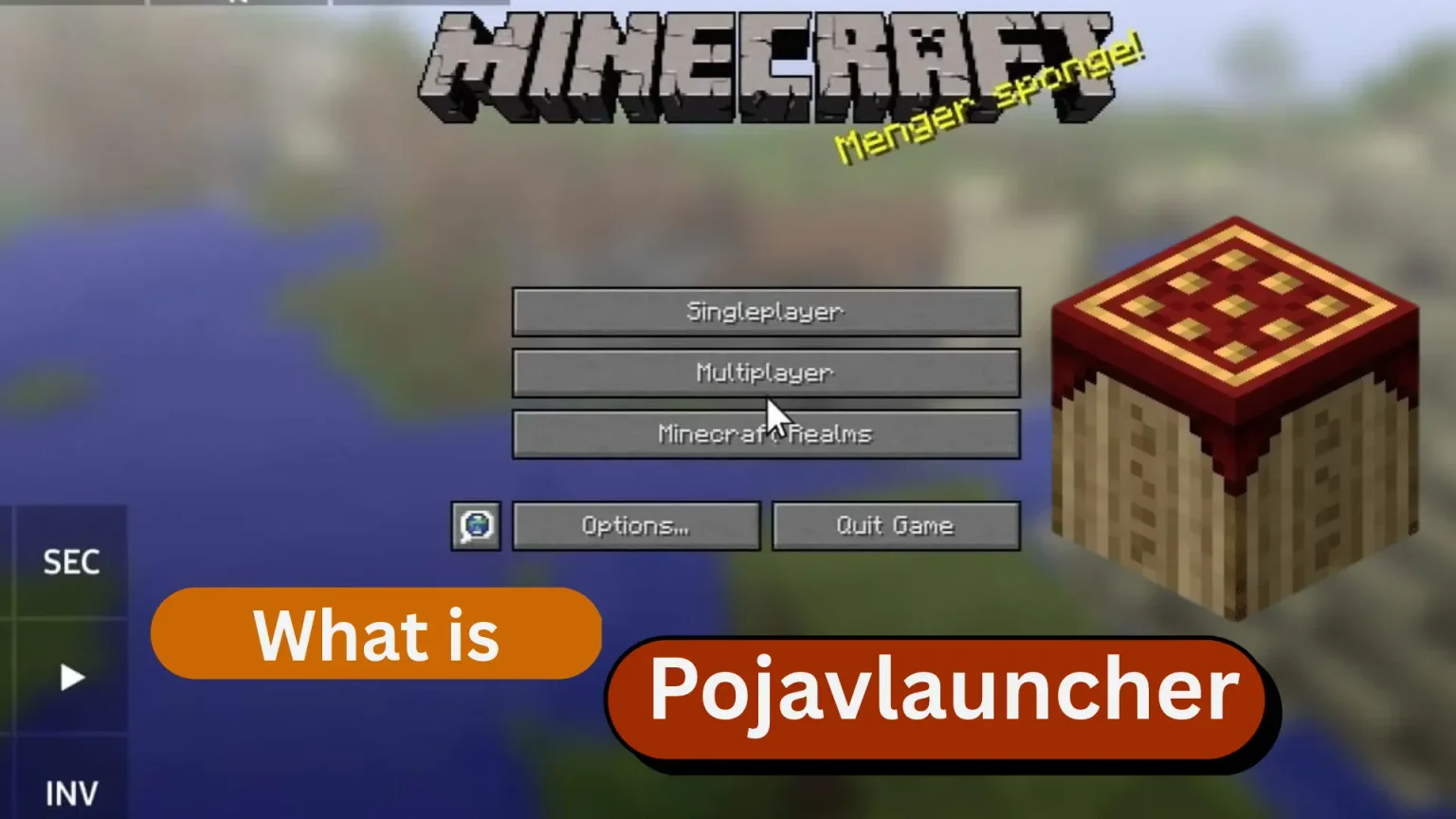
Minecraft is one of the most popular sandbox games, allowing players to explore open worlds, collect resources, build structures, and create their own adventures. While Minecraft Java Edition is traditionally associated with computers, many mobile players want to experience its gameplay on their Android devices. This is where PojavLauncher comes into the picture. It is an open-source launcher originally developed to help users run Minecraft Java Edition on compatible mobile devices.
This pojavlauncher guide explains what the launcher does, how it works, what players should know before installation, and how to configure Minecraft for a more comfortable mobile experience. Whether you are new to Minecraft Java Edition or already familiar with its features, understanding the launcher, device requirements, account setup, and potential limitations can help you make an informed decision before getting started.
PojavLauncher is a mobile launcher designed to run Minecraft Java Edition on compatible Android and Apple devices. Unlike Minecraft Bedrock Edition, which has a dedicated mobile version, Java Edition was developed primarily for desktop operating systems. PojavLauncher was created to bridge this gap by providing a mobile environment capable of running the Java version of Minecraft.
The launcher uses Java runtime components and graphics compatibility technologies to help the game operate on supported mobile hardware. It also provides options for selecting game versions, configuring controls, and working with compatible modifications. These features made PojavLauncher a popular option among players who wanted to experience Java Edition gameplay without always using a desktop computer.
It is important to understand that PojavLauncher is a launcher rather than a separate Minecraft game. Players generally need a legitimate Minecraft Java Edition license and an appropriate Microsoft account to access the game. Installing the launcher alone does not provide ownership of Minecraft.
Important project status: The original PojavLauncher project was discontinued, and its main GitHub repository was archived in September 2025. Its original development team is no longer maintaining that repository. Anyone researching PojavLauncher today should verify the source, compatibility, and maintenance status of any version they consider installing.
Why Do Minecraft Players Use PojavLauncher?
The main reason people became interested in PojavLauncher was the opportunity to run Minecraft Java Edition on mobile hardware. Java Edition has a long history of community-created content, different game versions, custom servers, and modifications that distinguish it from the standard mobile edition.
Here are some of the reasons players have explored the launcher.
1. Access to Minecraft Java Edition Gameplay
PojavLauncher was developed to run the Java Edition of Minecraft instead of providing a completely different mobile game. This can appeal to players who are familiar with the desktop edition and want to explore its gameplay on a compatible phone or tablet.
Depending on the game version and device, players may be able to enjoy survival mode, creative mode, building projects, exploration, and other familiar Minecraft activities.
2. Multiple Minecraft Versions
Minecraft has received many updates over the years, and some players prefer older releases because of their gameplay mechanics, world-generation features, or compatibility with particular modifications.
PojavLauncher historically supported a broad selection of Minecraft versions. However, compatibility varies according to the launcher build, Java runtime, device architecture, and game requirements. Not every version will necessarily work correctly on every phone.
Before choosing a release, check the available documentation and confirm that the required components are compatible.
3. Mod and Customization Support
One of the most appealing aspects of Minecraft Java Edition is its modification community. Mods can introduce new blocks, gameplay systems, creatures, interface changes, and other features.
The original PojavLauncher project documented support for mod loaders such as Forge and Fabric. Nevertheless, individual mods may have additional requirements, and some desktop modifications depend on native libraries or graphics features that are unavailable on certain mobile devices.
Players should check mod compatibility carefully and back up important worlds before making substantial changes.
4. Customizable Mobile Controls
Minecraft Java Edition was designed around keyboard and mouse input, so playing it on a touchscreen can require adjustment. PojavLauncher provided mobile control options intended to make common actions accessible through on-screen buttons.
Depending on the build and device, users may be able to adjust button placement, screen layout, sensitivity, and other input settings. An external keyboard or mouse can also provide a more familiar control experience when supported.
Requirements Before Using PojavLauncher on Android
Before attempting to run Minecraft Java Edition on Android, consider the device and software requirements. A launcher may install successfully but still struggle to run a demanding game version.
Android Device Compatibility
Your phone or tablet needs a compatible Android version, processor architecture, graphics capabilities, and sufficient available memory. Requirements can vary between launcher builds and Minecraft releases, so there is no single hardware specification that guarantees a good experience across all versions.
A device with more available RAM and a capable processor may handle the game more comfortably than an entry-level device. However, actual performance depends on several factors, including rendering settings, game version, world complexity, and background applications.
Storage Space
Minecraft requires storage for game files, libraries, assets, configuration data, and saved worlds. Mods and resource packs can increase the amount of space needed.
Before installation, check the available storage on your device. Keeping some extra free space is helpful because updates and new worlds may require additional room.
A Legitimate Minecraft Account
A compatible launcher does not replace a Minecraft license. To access Minecraft Java Edition, you generally need a Microsoft account that owns the game and can authenticate successfully.
Use the legitimate account sign-in process provided by the launcher you choose. Never share your password or verification codes with unofficial download sites or people offering account activation services.
A Reliable Internet Connection
An internet connection may be needed to download game files, authenticate your account, retrieve libraries, or join online servers. Once the required files are available, some single-player activities may work offline, depending on the configuration and authentication requirements.
A stable connection can make the initial setup process easier and help prevent incomplete downloads.
How to Get Started With PojavLauncher
The original PojavLauncher project is no longer actively maintained, so users should not assume that an old installation guide or download page reflects the current situation. The following steps explain the general setup process and the checks worth making before using a legacy launcher.
Step 1: Check the Project and Download Source
Begin by reviewing the original project's archived repository and any clearly documented successor project. The original source repository is available on GitHub:
Review its archived status, release history, documentation, and available notices before proceeding. If you are considering a successor or alternative launcher, check its own repository rather than assuming it is maintained by the original team.
Avoid APK files from unfamiliar download sites, modified applications promising free access to paid Minecraft features, and installers that request unnecessary permissions. Verify the source and inspect security information whenever possible.
Step 2: Review Device Compatibility
Before installing an Android application, confirm that it supports your device and Android version. Review the relevant installation instructions, runtime requirements, and known issues.
If the available version is not compatible with your phone, installing it repeatedly is unlikely to resolve a fundamental architecture or software limitation. In that case, consider a maintained alternative or the official mobile version of Minecraft.
Step 3: Install From a Verified Source
If you decide to use a compatible and trustworthy build, follow the instructions provided by its maintainers. Android may require permission to install an application from outside the Play Store, depending on the source.
Only enable installation permissions for a source you have independently verified. After installation, you can revoke that permission if it is no longer needed. Do not disable security protections simply to install an unfamiliar APK.
Step 4: Sign In With Your Minecraft Account
Open the launcher and follow its supported authentication procedure. Use your own Microsoft account and confirm that it has access to Minecraft Java Edition.
If authentication fails, check your connection, account ownership, and the launcher's documentation. Do not enter account details into unrelated websites claiming to unlock Minecraft.
Step 5: Select a Compatible Game Version
After authentication and setup, choose a Minecraft version supported by the launcher and your device. Older releases may have different runtime requirements from newer ones.
For your first attempt, a version known to work with your specific device and launcher build may be easier to troubleshoot than a heavily modified or experimental release.
Step 6: Adjust the Game Settings
Before loading a large world, consider using modest graphics settings. A lower render distance, reduced visual effects, and a suitable resolution can help reduce the workload on your phone.
Start with a simple single-player world to check whether the game launches, responds to input, and runs reliably. If everything works as expected, you can gradually adjust the settings.
How to Improve Minecraft Performance on Android
Running a desktop-oriented game on mobile hardware can be demanding. Even a capable phone may experience frame-rate drops or heating when running certain Minecraft versions.
The following practices can help you identify and reduce common performance problems.
Reduce Render Distance
Render distance determines how far the game attempts to display the surrounding world. Higher values require additional processing and memory.
If Minecraft runs slowly, reduce the render distance and test the game again. A smaller viewing distance may provide smoother gameplay, especially on devices with limited resources.
Close Unnecessary Background Applications
Other applications can use memory and processor resources while Minecraft is running. Closing unnecessary apps may help free up resources.
Avoid using aggressive system-cleaning utilities that terminate essential processes or interfere with the launcher. Simple device maintenance is generally preferable.
Use Compatible Mods and Resource Packs
High-resolution resource packs, complex shaders, and large mod collections can increase the game's workload. Some modifications may not work because they depend on desktop-specific libraries or graphics functions.
Start with the unmodified game. Add one compatible modification at a time, testing after each change. This makes it easier to identify the source of a crash or performance problem.
Monitor Device Temperature
Long gaming sessions can cause a phone to heat up. When a device becomes too hot, its system may reduce performance to control temperature.
Play in a well-ventilated environment, avoid covering the device, and take breaks if it becomes unusually hot. If performance declines as the phone heats up, allow it to cool before continuing.
Keep Enough Storage Available
A device with very little free storage may have difficulty managing downloads, temporary files, and saved data. Remove unnecessary files when appropriate and retain backups of valuable Minecraft worlds.
Do not delete unfamiliar launcher folders or configuration files without understanding their purpose.
Can You Use Mods With PojavLauncher?
Mod support is one of the reasons Minecraft Java Edition attracts such a large community. Mods can change the user interface, add new items, introduce additional dimensions, or completely transform the way a world operates.
The original PojavLauncher project documented Forge and Fabric support, but successful installation depends on the particular game version and mod requirements.
Before installing a mod, check the following:
Minecraft version: The mod must support the version of Minecraft you intend to run.
Mod loader: Confirm whether the mod requires Forge, Fabric, or another supported loader.
Java requirements: Some versions require a particular Java runtime.
Device limitations: A mod may depend on graphics features or native components unavailable on your device.
Dependencies: Some mods require additional libraries or other modifications.
World backups: Make a backup before testing changes that could affect saved data.
If the game crashes after adding a mod, remove the most recent addition and test the original configuration. This simple process can help identify compatibility problems without risking an entire collection of files.
Can PojavLauncher Run Multiplayer Minecraft?
PojavLauncher was designed to run Minecraft Java Edition, which means compatible configurations can potentially connect to Java Edition multiplayer servers. However, server access depends on several factors, including the selected game version, account authentication, server configuration, and any required client-side modifications.
A server running a different Minecraft version may reject the connection. Some servers also require specific mods or resource packs, while others restrict access through their own rules.
To troubleshoot a multiplayer connection:
Confirm that the game version matches the server's supported version.
Check your internet connection.
Make sure your account authentication is working.
Review any server-specific requirements.
Read the complete error message before changing settings.
Remember that Java Edition and Bedrock Edition do not automatically share the same multiplayer compatibility. Cross-play requires an appropriate server configuration or additional software.
Common PojavLauncher Problems and Their Solutions
Players using a legacy launcher may encounter installation errors, startup failures, poor performance, or authentication difficulties. The best solution depends on the error message and the exact software configuration.
PojavLauncher Crashes on Startup
A startup crash may result from an incompatible game version, missing files, an unsuitable Java runtime, insufficient resources, or a graphics compatibility problem.
Check the launcher logs and compare the error with the documentation for the relevant version. Try a compatible, unmodified game installation before introducing mods or custom settings.
Minecraft Shows a Black Screen
A black screen may indicate a rendering issue, a problem loading game resources, or an incompatibility between the game version and the device's graphics environment.
Restart the game, check for incomplete downloads, and review the renderer options documented for your build. If the problem began after changing graphics settings or adding a mod, restore the previous configuration.
The Game Runs Slowly
Low frame rates may be caused by demanding graphics settings, complex worlds, extensive modifications, or hardware limitations.
Reduce render distance, simplify the configuration, close unnecessary apps, and test an older compatible game version if appropriate. Results will vary by device, so there is no universal setting that guarantees a particular frame rate.
Microsoft Account Sign-In Fails
Authentication issues can occur because of connectivity problems, account restrictions, expired sessions, or an outdated launcher implementation.
Check the account through Microsoft's legitimate services and review the launcher's authentication documentation. Because the original project is discontinued, some legacy components may no longer work reliably with current services.
Never provide your account password to a third-party support contact in an attempt to fix a sign-in issue.
Mods Cause the Game to Close
A crash after installing a modification often indicates a version mismatch, missing dependency, unsupported feature, or conflict between mods.
Remove the most recently installed mod and test again. Review the crash report, confirm the required game and loader versions, and keep a backup of the original configuration.
Is PojavLauncher Safe to Download?
Safety depends on the specific application build and where it comes from. The original launcher was an open-source project, but that does not mean every website distributing an APK is trustworthy.
Because the original repository is archived, users should take additional care when reviewing downloads and installation instructions. A third-party site may distribute an outdated, modified, or potentially unsafe file even when it uses the PojavLauncher name.
For a safer process, follow these recommendations:
Start with the original archived project or a clearly identified successor repository.
Review release information and project ownership.
Avoid installers that promise unauthorized access to paid games.
Check requested permissions and scan downloaded files using reputable security tools.
Do not disable security protections to bypass an installation warning.
Keep backups of important worlds and configuration files.
Never share account passwords, recovery codes, or authentication tokens.
If you cannot verify the origin or integrity of a download, do not install it. Choosing a maintained project with transparent documentation may be a better option than relying on an unknown legacy build.
PojavLauncher Alternatives for Android Players
Since the original PojavLauncher project was discontinued, players may want to investigate other ways to enjoy Minecraft.
Amethyst and Other Successor Projects
The original PojavLauncher repository points to Amethyst as a successor. Players interested in this option should review the successor's official repository, current maintenance activity, supported devices, and installation instructions before using it.
Do not assume that every feature or configuration from the original launcher is available in a successor. Compatibility and support policies can change as projects develop.
Official Minecraft for Android
The official Android version of Minecraft is another option. It is designed for mobile devices and generally offers a more straightforward installation and control experience.
However, it is Minecraft Bedrock Edition rather than Java Edition. Players who specifically need Java Edition mods, desktop-oriented features, or compatibility with a Java Edition server should check those requirements before choosing an alternative.
Playing Minecraft on a Computer
If your primary goal is to use the full desktop experience, playing Minecraft Java Edition on a compatible computer may be the most direct option. A computer can offer conventional keyboard and mouse controls and a wider range of supported desktop modifications.
The right choice depends on your hardware, preferred game edition, budget, and desired features.
Conclusion
PojavLauncher introduced an interesting way for Minecraft fans to explore Java Edition on compatible mobile devices. Its support for game-version selection, customizable controls, and certain mod loaders helped make it a notable project for players who wanted more flexibility than a typical mobile gaming experience.
Ultimately, the best way to enjoy Minecraft on Android depends on your device, preferred edition, and intended gameplay. By understanding the available options and following careful setup practices, you can make a more informed choice and avoid many common installation and compatibility problems.
 Visit For How to Play Minecraft Java Edition on Android Devices